
How to Warm Up a New Email Domain for Cold Outreach (Step-by-Step)
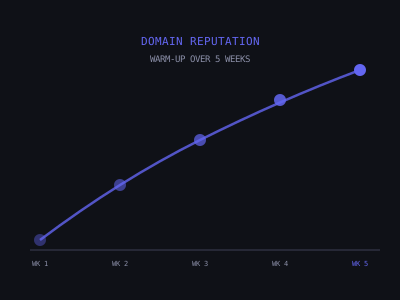
A new email domain and mailbox have no sending reputation. When you start sending cold emails from a brand-new inbox, inbox providers like Google and Microsoft have no data to confirm that you're a legitimate sender. Without that history, your emails are far more likely to land in spam — sometimes for every single recipient.
Email warm-up is the process of building that reputation before you start sending campaigns. Done correctly, a properly warmed-up inbox delivers the majority of cold emails to the primary inbox from day one of your campaign. Skip it, and you risk burning a domain that took weeks to set up and hundreds of dollars to maintain.
This guide walks through the exact process — tool selection, DNS prerequisites, the day-by-day warm-up schedule, the metrics you need to watch, the mistakes that destroy new domains, and how to manage warm-up across multiple mailboxes when you scale. Every step here is based on what consistently produces inbox placement rates above 85% on the first full campaign send.
What Email Warm-Up Actually Does
Email providers evaluate new mailboxes based on behavioral signals: how many emails they send, what percentage get opened, what percentage bounce, how many recipients mark them as spam, and whether recipients actively engage (reply, forward, move from spam to inbox). A brand-new mailbox has none of these signals — it's a blank slate, which makes it suspicious.
Warm-up tools simulate the behavioral patterns of a legitimate, actively-used email account. They send emails to a network of seed accounts, which automatically open them, reply to them, and — critically — move any that land in spam back to the inbox. This signals to Google and Microsoft that your mailbox is legitimate and that recipients value receiving email from you.
The result is a mailbox with a positive engagement history before your first campaign ever sends. That history dramatically improves inbox placement rates.
To understand why this matters in concrete terms, consider the math. If you send 40 cold emails per day and your inbox placement is 90%, 36 of those reach the primary tab. At 60% placement (common with no warm-up), only 24 land in the inbox. Over a 20-day campaign, that's 240 fewer emails reaching prospects — the equivalent of six full days of sending completely wasted. At a 3% reply rate, that gap costs you roughly 7 booked meetings per month. Warm-up is not optional; it's the difference between a profitable campaign and one that never gains traction.
Step 1: Domain and DNS Setup First
Before warming up any mailbox, confirm your DNS records are correctly configured. SPF, DKIM, and DMARC records must be set and verified before warm-up traffic starts. Sending warm-up emails without proper authentication is like building a foundation on sand — the reputation you build won't stick because providers will still flag your authentication as incomplete.
Here is exactly what each record does and why it matters for warm-up specifically:
- SPF (Sender Policy Framework): Tells inbox providers which mail servers are authorized to send email on behalf of your domain. Without a valid SPF record, Google and Microsoft treat your warm-up traffic as potentially spoofed, which means the positive engagement signals from your warm-up tool are partially or completely discounted. For Google Workspace, the SPF record is: v=spf1 include:_spf.google.com ~all. For Microsoft 365, it includes: v=spf1 include:spf.protection.outlook.com ~all.
- DKIM (DomainKeys Identified Mail): Adds a cryptographic signature to every email you send, allowing the receiving server to verify the message was not modified in transit and actually originated from your domain. Generate your DKIM key in Google Admin Console (under Apps > Google Workspace > Gmail > Authenticate email) or in the Microsoft 365 Defender portal. After generating, add the TXT record to your DNS. Propagation takes 24-48 hours — verify before starting warm-up.
- DMARC (Domain-based Message Authentication, Reporting, and Conformance): Tells inbox providers what to do when an email fails SPF or DKIM checks. Start with a monitoring-only policy: v=DMARC1; p=none; rua=mailto:dmarc@yourdomain.com. The "p=none" setting means no emails are rejected initially, but you receive reports on authentication failures. After 4-6 weeks of clean sending, you can tighten this to p=quarantine or p=reject for stronger protection.
Verify your DNS setup using MXToolbox or the built-in diagnostics in your warm-up tool. All three records (SPF, DKIM, DMARC) should show green before proceeding. For exact DNS configuration instructions, see the cold email deliverability checklist.
One detail many senders overlook: if you purchased your domain from a registrar like Namecheap or GoDaddy but host your DNS through Cloudflare or another provider, make sure you are editing DNS records in the correct location. Adding SPF to your registrar when your nameservers point to Cloudflare means the record is invisible to inbox providers. Run MXToolbox after every change to confirm the record resolves correctly from the public internet.
Step 2: Choose a Warm-Up Tool
The three most widely used warm-up tools in 2026 are Instantly, Lemwarm, and Mailreach. Each has a large network of seed accounts for warm-up traffic and provides deliverability monitoring dashboards.
- Instantly Warmup (included in Instantly plans): Best if you're already using Instantly for sending. Seamless integration, large warm-up network, and the dashboard shows deliverability metrics alongside your campaign stats.
- Lemwarm ($29/mailbox/month): Standalone warm-up tool with detailed deliverability reporting. The warm-up network is slightly smaller than Instantly's but the analytics are excellent. Good choice if you use a different sending tool.
- Mailreach ($25/mailbox/month): Focused specifically on warm-up with strong spam placement monitoring. Provides a deliverability score you can use to decide when a mailbox is ready for cold campaigns.
Avoid "free" warm-up tools with small networks. The quality and size of the warm-up network directly impacts how fast and reliably your reputation builds.
When evaluating warm-up tools, the single most important factor is network size. A warm-up network of 10,000+ real seed mailboxes across Google, Microsoft, Yahoo, and other providers produces diverse engagement signals that mirror real-world email behavior. A small network of 500 mailboxes creates repetitive patterns that inbox algorithms can detect and discount. The second factor is monitoring granularity — you need to see spam placement broken down by provider (Google vs. Microsoft vs. Yahoo) so you can identify provider-specific issues early. A mailbox might show 95% inbox at Google but 40% inbox at Microsoft, and aggregate stats would hide that problem.
For agencies managing multiple client mailboxes, the operational consideration is centralized management. Instantly and Smartlead both support bulk mailbox management, meaning you can monitor 20+ mailboxes from a single dashboard. If you are warming up 3-5 mailboxes per client across 5 clients, managing each one individually through a standalone tool creates unnecessary overhead. Choose the tool that fits your scale.
Weekly Warm-Up Email Volume Ramp (Per Mailbox)
Step 3: The Warm-Up Schedule — Week by Week
Here is the recommended warm-up schedule for a new Google Workspace or Microsoft 365 mailbox. Follow this for each mailbox individually.
- Week 1 (Days 1-7): Start warm-up tool at 5 emails/day. Zero cold sending. Monitor spam placement rate — target below 5%. During this first week, also send 2-3 manual emails per day to colleagues, partners, or other real contacts. These organic interactions supplement the warm-up tool's signals and help establish a natural sending pattern.
- Week 2 (Days 8-14): Increase warm-up to 10 emails/day. Send 0-5 cold emails/day to very clean, verified lists only. If spam placement is above 10%, stay at 5/day for another week. The cold emails you send during this phase should be your absolute best-performing copy to maximize reply rates and provide additional positive engagement signals.
- Week 3 (Days 15-21): Warm-up at 15 emails/day. Cold sends at 10-15/day. Run a Glockapps deliverability test to check inbox vs spam placement across providers. If your Glockapps test shows less than 70% inbox placement on any major provider, do not increase volume — hold at this level until the next test shows improvement.
- Week 4 (Days 22-28): Warm-up at 15-20 emails/day. Cold sends at 20-25/day. Confirm bounce rate below 2% on cold sends. Check reply rate as a secondary engagement signal. This is the validation week — if all metrics are green, you are clear to ramp to full volume next week.
- Week 5 (Days 29-35): Warm-up at 20 emails/day (maintain indefinitely). Cold sends at 30-40/day. Full campaign launch.
Never stop the warm-up process just because you've started sending cold emails. Keeping warm-up running continuously maintains your mailbox reputation between campaign periods and during volume spikes.
A critical nuance: these numbers are per mailbox, not per domain. If your domain has three mailboxes (e.g., james@, sarah@, info@), each one follows its own warm-up schedule independently. You cannot shortcut warm-up by distributing volume across mailboxes on the same domain — each mailbox builds its own reputation, and each one needs the full warm-up cycle before carrying cold campaign traffic.
Sending Manual Emails Alongside Warm-Up
Warm-up tools handle automated reputation building, but supplementing with manual sending activity during the first two weeks makes a measurable difference. Inbox providers track not just volume but the diversity of sending behavior. An account that only sends identical warm-up emails looks different from one that also sends calendar invites, replies to threads, and forwards articles to colleagues.
During weeks 1 and 2 of the warm-up period, take these manual actions from each warming mailbox:
- Send 2-3 personal emails per day to team members, friends, or other real contacts. These should be genuine conversations — scheduling requests, questions, article shares — not templated messages.
- Subscribe to 3-5 newsletters using each warming mailbox. The confirmation emails, opens, and clicks from newsletters generate additional positive engagement data.
- Reply to incoming emails within the same day. Fast reply behavior is a strong positive signal that the mailbox belongs to an active, engaged user.
- Send a few emails to your own Gmail and Outlook accounts and open, star, and reply to them. This directly seeds positive interaction data with those specific providers.
This manual activity layer takes 5-10 minutes per mailbox per day but consistently accelerates warm-up timelines by 3-5 days based on what we see across client accounts.
What to Monitor During Warm-Up
These are the key metrics to watch throughout the warm-up period. Check them at least every 3 days.
- Spam placement rate (target: under 10%): Your warm-up tool shows what percentage of warm-up emails land in spam. If this number climbs above 15%, pause warm-up and check for DNS errors or other deliverability issues.
- Open rate on warm-up emails: Should be consistently high (80%+) since seed accounts are designed to open everything. If open rates drop, the warm-up network may have issues.
- Mailbox health score: Tools like Mailreach provide a composite health score. Target above 85/100 before starting full cold campaigns.
- Authentication verification: Re-run MXToolbox every 2 weeks to confirm DNS records haven't been accidentally altered by DNS cache changes or registrar edits.
Beyond these core metrics, track two additional data points that most senders ignore. First, check your sending IP reputation at Google Postmaster Tools. If your Google Workspace accounts share an IP pool with other senders on the same hosting provider, their behavior can affect your reputation — Postmaster Tools lets you see if IP reputation is dragging down your domain reputation. Second, monitor your DMARC reports. The aggregate reports sent to the address in your DMARC record reveal whether any third-party services are sending email on behalf of your domain without authorization (this happens more often than you would expect, especially if you use SaaS tools that send transactional emails from your domain).
Create a simple tracking spreadsheet with columns for date, mailbox name, spam placement percentage, open rate, health score, daily cold send volume, bounce rate, and reply rate. Update it every Monday and Thursday. This log becomes invaluable when you need to diagnose a sudden deliverability drop — you can trace exactly when metrics started declining and correlate it with volume changes, list sources, or DNS modifications.
Target Metrics During Email Warm-Up
Common Warm-Up Mistakes That Ruin New Domains
These are the most frequent errors that prevent warm-up from working — or actively damage mailbox reputation before campaigns even begin:
- Sending cold emails before DNS is verified. Without SPF/DKIM/DMARC, authentication failures immediately signal spam to providers. Even one day of sending without proper authentication can set your warm-up back by a week.
- Sending cold emails before completing at least 2 weeks of warm-up. Even a clean list will produce spam placement if the mailbox has no reputation history.
- Ramping volume too fast. Going from 5 to 50 emails/day in a week triggers spam detection algorithms that look for sudden volume spikes from new mailboxes. The algorithms are designed to catch botnets and compromised accounts — and a sudden ramp looks exactly like that behavior.
- Sending to unverified lists during warm-up. A hard bounce on a new domain immediately sets back reputation building. Only send to verified, clean lists during the warm-up period. Run every list through a verification tool like Zerobounce, Neverbounce, or Millionverifier before loading it into your sending tool. Target a bounce rate below 2% — anything above that during the warm-up period is a red flag.
- Stopping warm-up after starting cold sends. The warm-up traffic provides ongoing positive engagement signals. Turning it off removes that protective layer.
- Using the same domain for marketing emails and cold outreach. Marketing automation tools like Mailchimp or HubSpot have very different sending patterns from individual outreach. Keep them on separate domains. Your primary business domain (company.com) should never be used for cold email — use a secondary domain like getcompany.com or trycompany.com instead.
- Warming up too many mailboxes on one domain simultaneously. If you create five mailboxes on the same domain and warm them all up at the same time starting day one, the combined warm-up volume creates an unnatural pattern. Stagger your warm-up starts: begin with your first mailbox on day one, add the second mailbox on day four, the third on day eight, and so on.
- Ignoring sending time patterns. A real business user sends emails during business hours, with natural gaps for meetings and lunch. Configure your warm-up tool to send between 8 AM and 6 PM in your target timezone with randomized intervals. Sending 15 warm-up emails in a 30-minute burst at 3 AM does not look like legitimate behavior.
How Long Does Warm-Up Take?
The minimum warm-up period before running full cold campaigns is 3-4 weeks for most mailboxes. However, these factors require extending the warm-up period:
- Domain age under 30 days: Add an extra 1-2 weeks. Very new domains are scrutinized more heavily. If possible, register domains 2-4 weeks before you even need to start warm-up. Domain age alone is a trust signal.
- High spam placement rate (>10%) during warm-up: Do not escalate volume until spam placement drops and stabilizes below 5%.
- Previous deliverability issues on the domain: If a domain was previously used for cold email and had problems, a standard 4-week warm-up may not be sufficient. Consider purchasing a new domain instead.
- Microsoft 365 mailboxes: Generally take 1-2 weeks longer to warm up than Google Workspace for equivalent deliverability. Microsoft's spam filtering is more aggressive with new senders, and their algorithms weight domain age more heavily than Google does.
- Targeting enterprise recipients: If your prospect list is predominantly corporate email addresses at large companies, those organizations often use additional spam filtering layers (Proofpoint, Mimecast, Barracuda) beyond the default inbox provider filters. These gateways are harder to pass, and a longer warm-up period with higher reputation scores is needed before you can reliably reach these inboxes.
For a complete guide to building your full sending infrastructure, see how to set up cold email infrastructure that avoids spam and how many cold emails to send per day.
Managing Warm-Up Across Multiple Mailboxes
Most serious cold email operations run 3-5 mailboxes per domain and 2-4 domains per campaign, which means you could be managing 6-20 mailboxes simultaneously. At this scale, a structured approach to warm-up management prevents the most common operational mistake: losing track of which mailboxes are ready for full volume and accidentally burning a mailbox that was only two weeks into warm-up.
Here is the system that works at scale:
- Maintain a mailbox inventory spreadsheet. Columns: domain, mailbox address, warm-up start date, current warm-up day, max cold send per day (based on warm-up stage), spam placement rate (last checked), health score (last checked), status (warming / ready / paused / burned). Update this spreadsheet every Monday and Thursday.
- Stagger domain purchases. If you need 4 domains for a campaign launching in 6 weeks, buy two domains now and two more one week later. Staggered registration dates reduce the pattern of multiple brand-new domains all appearing simultaneously, which some providers flag.
- Use a naming convention. Pick a consistent pattern for your outreach domains. Common patterns include: getcompany.com, trycompany.com, companymail.com, meetcompany.com. Avoid patterns that look spammy like company123.com or company-outreach.com.
- Rotate sending load across mailboxes. Once all mailboxes are fully warmed, distribute your daily cold campaign volume evenly. If you have 4 mailboxes each capable of 35 sends per day, you have 140 daily sends total — do not load 80 sends on one mailbox and 20 on each of the others. Even distribution protects against volume spikes on any single mailbox.
For agencies running warm-up on behalf of clients, build this tracking system into your client onboarding workflow. Start warm-up on the day of contract signing — not the day you plan to launch the campaign. A 4-week warm-up window should be baked into every client's timeline from the beginning.
Warm-Up for Domains That Have Been "Burned"
If you have an existing domain that was previously used for cold email and is now showing poor deliverability — high spam placement, low open rates, or accounts flagged by Google — the warm-up process is significantly longer and less reliable. In most cases, it's faster and more effective to purchase a new domain and build reputation from scratch than to try to recover a damaged one. The cost of a new domain is $10-15. The cost of running campaigns with 20% inbox placement for months while trying to recover a burned domain is much higher.
If you do want to attempt recovery on a burned domain — perhaps because the domain has existing brand recognition or backlinks you want to preserve — follow this protocol:
- Stop all cold sending immediately. Do not send a single cold email from the burned domain for at least 30 days. Continue warm-up only.
- Verify and re-verify DNS records. Run MXToolbox to confirm SPF, DKIM, and DMARC are all correctly configured. Fix any issues found.
- Reduce warm-up volume to 5 emails/day and hold that level for 2 full weeks. Monitor whether spam placement drops below 15%.
- Slowly ramp warm-up by 2-3 emails per day per week. This is much slower than a fresh domain warm-up. The goal is to rebuild positive engagement signals without triggering the algorithms that flagged the domain originally.
- Run Glockapps tests every 5 days during recovery. You need at least 3 consecutive tests showing 80%+ inbox placement across Google and Microsoft before you resume cold sending at any volume.
- When you do resume cold sending, start at 5 emails per day maximum and follow the full week-by-week ramp schedule from scratch.
Realistically, recovering a burned domain takes 8-12 weeks with no guarantee of success. In the time it takes to attempt recovery, you could have purchased a new domain, completed warm-up, and run 4-6 weeks of profitable campaigns. The economics almost always favor starting fresh.
If you are building cold email campaigns for AI agency client acquisition, see our guide on how to personalize cold emails at scale with AI. For understanding why emails end up in spam, read why cold emails go to spam and how to fix it.
Testing Deliverability Before Your First Campaign
Before you launch your first real cold campaign on a warmed-up mailbox, run a final deliverability audit. This is the last checkpoint between warm-up and live sending, and catching issues here saves you from burning reputation on a preventable problem.
- Run a Glockapps or Mail-Tester seed test. Send your actual campaign email (subject line, body copy, signature, links) to the test's seed list. Review the results: you want 85%+ inbox placement across Google, Microsoft, and Yahoo. If any single provider shows less than 70% inbox, investigate before launching.
- Check your email content for spam triggers. Spam filters evaluate content independently of sender reputation. Common triggers include: too many links (keep it to 1-2 max), image-heavy emails with little text, URL shorteners (bit.ly, tinyurl), all-caps subject lines, and excessive HTML formatting. Your cold email should look like a plain-text message from a real person, because that is what gets the best results.
- Verify your sending list one more time. Even if you verified your list weeks ago, email addresses go stale. Run the list through a verification tool again within 48 hours of campaign launch. A single hard bounce on your first campaign day can undo weeks of careful warm-up.
- Send 5-10 test emails to your own accounts. Send from the warmed-up mailbox to your personal Gmail, Outlook, and Yahoo accounts. Confirm the emails land in the primary inbox (not Promotions, not spam). Check that links, tracking pixels, and signatures render correctly.
Only launch the full campaign once every checkpoint passes. If any metric falls short, pause and investigate. One extra day of preparation is always cheaper than burning a domain that took four weeks to warm up.
Frequently Asked Questions
Want to learn how to build and sell AI automations? Join our free community. Join the free AI Automation Sprint community.
Join 215+ AI Agency Owners
Get free access to our all-in-one outreach platform, AI content templates, and a community of builders landing clients in days.