
How to Respond to Every Lead in Under 5 Minutes With AI Automation
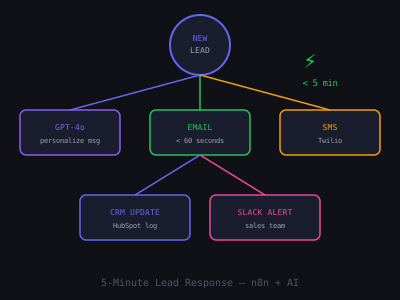
Research consistently shows that responding to a lead within 5 minutes makes you 9 times more likely to convert them compared to waiting 30 minutes. After one hour, your conversion odds drop by over 60 percent. Most businesses respond in hours. The ones that respond in minutes close more deals — not because of better salespeople but because of better systems. This guide walks through building an AI lead response automation that responds to every new lead in under 5 minutes, around the clock, without any manual effort.
Why Speed-to-Lead Is the Highest-ROI Automation
Speed-to-lead automation is the first automation to sell to almost any local service business because the ROI is immediate and undeniable. When a homeowner needs a plumber, they call or fill out a form for three to five businesses simultaneously. The first one to respond wins the appointment. Everything else — price, reviews, website — is secondary to being first. This is especially true for after-hours and weekend leads, which most businesses miss entirely because their office is closed.
For an AI agency owner, this is the easiest sale because the problem is universal and the solution is tangible. You can demonstrate it working in real time during a demo. For a full demo strategy, see how to create a demo that closes.
Lead Conversion Rate by Response Time
Step 1: Set Up Real-Time Lead Capture Triggers
Build n8n triggers for every lead source the business uses. For website forms, use a webhook trigger — most form builders (Typeform, Gravity Forms, Contact Form 7, and custom HTML forms) support webhook notifications on submission. In n8n, create a Webhook node, copy the webhook URL, and paste it into the form builder's notification settings. For missed phone calls, use CallRail or a similar service that sends a webhook notification when a call is missed. For email inquiries, use the Gmail trigger node to watch for new unread emails in a designated inbox. Build one trigger per lead source, all routing into the same processing workflow.
Test each trigger with a real submission before connecting the AI response layer. The most common setup failure is a form builder that sends data in an unexpected format — verify the exact field names that arrive in the n8n trigger before building the response logic around them.
Step 2: Generate a Personalized AI Response
After the trigger fires, pass the lead data to an OpenAI node. The system prompt defines the business persona: "You are the customer service representative for [Business Name], a [niche] business in [city]. You are warm, professional, and focused on helping customers quickly. Write responses in a conversational tone — short sentences, no jargon." The user prompt includes the lead data: "A new lead just submitted this inquiry: [form data]. Write a response that acknowledges their inquiry, expresses genuine interest in helping, and asks one specific question to understand their situation better. End with your name and a calendar booking link: [link]. Keep the response under 100 words."
The 100-word limit is important. Long automated responses feel like form letters. Short, specific responses feel like a real person paused to respond. Add a two to three-minute intentional delay before sending — an instant response feels robotic even when it is personalized. A response that arrives two minutes after the form submission feels like a real person who noticed it quickly.
Step 3: Send via Email and SMS Simultaneously
Use two parallel branches in n8n after the AI response is generated. Branch one: Gmail Send Email node with the full personalized response and booking link. Branch two: Twilio Send SMS node with a shorter version under 160 characters — "Hi [first name], got your inquiry. Checking on availability for you now. Check your email for details — [name]." The SMS surfaces the interaction on their phone immediately. The email provides the full context and booking link. Together, they create two chances to re-engage the lead within five minutes of their inquiry.
Use the business owner's real name and email address for the sender, not a no-reply address. Include a real email signature with phone number and calendar booking link. These details signal that a real person responded rather than an automated system, even when the content was AI-generated.
Step 4: Log to CRM and Alert the Team
After the response is sent, add parallel branches to log the lead to the CRM and alert the business owner. The CRM branch creates a new contact record (or updates an existing one if the email already exists) in Airtable, HubSpot, or GoHighLevel with the lead's information, the inquiry content, the timestamp, and a link to the email thread. The alert branch sends a Slack or SMS notification to the business owner: "New lead from [source]: [first name], [company/location]. Responded automatically. Check CRM for details."
This creates a complete workflow: lead submits → AI responds in under 5 minutes → owner is notified → lead is in CRM. For the follow-up layer that runs if the lead does not respond within 48 hours, see how to create an AI CRM workflow and automated lead follow-up for contractors.
Lead Response System Build Checklist
☐ Webhook triggers set up for all lead sources
☐ Test submission processed successfully from each source
☐ OpenAI system prompt trained on business voice and context
☐ Email response sends from real owner address with signature
☐ SMS sends within 5 minutes and reads naturally
☐ CRM record created automatically on each new lead
☐ Owner alert sends to Slack or personal SMS
☐ Follow-up sequence triggers if no response within 48 hours
Join 215+ AI Agency Owners
Get free access to our all-in-one outreach platform, AI content templates, and a community of builders landing clients in days.